
- Share
-

-

Why B2B Companies Are Migrating from WordPress to HubSpot
B2B companies migrate from WordPress to HubSpot primarily to eliminate developer dependency for marketing updates and connect their website directly to their CRM.
That single shift changes how marketing, sales, and revenue attribution work at a fundamental level.
Whether you are looking to move website from WordPress to HubSpot or evaluating a full HubSpot website migration, the business case comes down to the same thing - your website should feed your pipeline, not sit beside it.
WordPress powers an estimated 40% of websites on the internet.
It also runs the IT helpdesk of most marketing teams.
Every page edit goes through a developer.
Every plugin update is a potential site-breaking event. Every campaign launch is a negotiation between marketing and engineering over sprint capacity.
That is not a content management problem. That is a revenue problem.
The WordPress Maintenance Problem Nobody Talks About
WordPress is open-source, which means your site's security, performance,
and stability depend entirely on how well you maintain a stack of plugins, a theme, a hosting environment, and their collective compatibility.
A mid-size WordPress site typically runs 20 or more active plugins.
Each one is a dependency. Each update is a risk. And when something breaks at 9pm the night before a campaign goes live, someone is paying for that in time or agency fees.
If you have ever typed "why is WordPress so slow" into Google at midnight, you are not alone, and the answer is usually not your server. Slow WordPress sites are an architecture problem - unoptimised images, bloated page builders, render-blocking scripts, and plugin conflicts stacking up over time.
What HubSpot CMS Changes for B2B Websites
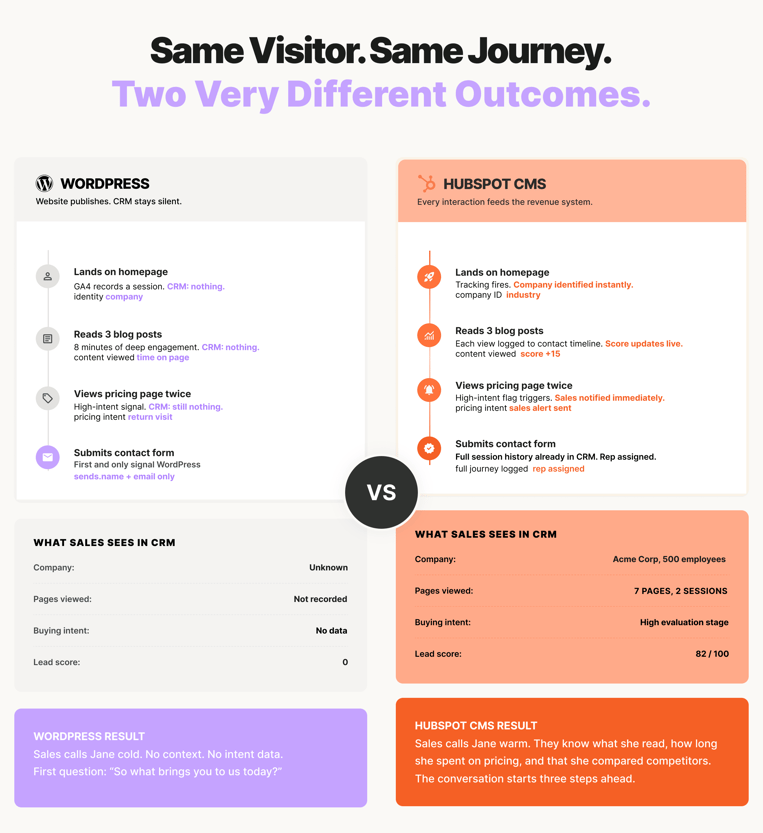
HubSpot CMS is not trying to be WordPress. What it does, it does extremely well for B2B companies that run their CRM and marketing on HubSpot. Four things this makes possible that WordPress cannot replicate natively:
-
Real-time contact records - built from behavioral data before a form is ever submitted
-
Sales visibility - into what a prospect has been reading before the first call
-
Content-to-pipeline attribution - connecting blog posts and landing pages to closed revenue
-
Lead scoring and routing - triggered by page-level behavior, not just form fills
Before You Migrate from WordPress to HubSpot: Do These 5 Things First
Before touching HubSpot CMS Migration, you need a content audit,
a redirect map, a CRM readiness check, an analytics baseline, and stakeholder alignment. Skipping any of these is the primary reason migrations lose rankings or go over budget.
1. How to Audit Your WordPress Content Before Migration
Export a full list of every URL on your WordPress site using Screaming Frog or Sitebulb. Then sort every page into one of three buckets:
- Migrate as-is - pages with traffic, backlinks, or active conversions worth preserving
- Improve before migrating - pages with good intent but weak or outdated content
- Retire permanently - thin pages, outdated service pages, content that never ranked or converted
For every page you keep, note the current URL, title tag, meta description, and any inbound links. This becomes your migration
source of truth.
3,000+ assets from WordPress to HubSpot
If you want to see what a clean content audit looks like at scale,
read how we helped a subsidiary of a Fortune 500 company migrate including a full content classification across multiple ICPs and a recommendation engine built on top.
2. Building Your Redirect Map Before You Touch HubSpot
A redirect map is a spreadsheet that lists every current WordPress URL alongside its destination URL in HubSpot. Getting your WordPress to HubSpot redirect setup right before launch is the single
highest-leverage action in the entire migration.
Build this before migration starts, not during - it is far easier to plan redirects when you are looking at two URL structures side by side.
3. CRM readiness check
confirm contacts, lifecycle stages, and list structures are set up in HubSpot. Every form needs a CRM destination mapped before migration begins.
4. Analytics baseline
pull current traffic, rankings, and conversion data from Google Analytics and Google Search Console.
5. Plugin audit
list every active plugin and what it does. Every function needs a HubSpot-native equivalent or a custom module. See the plugin replacement reference in section 7.
How to Migrate WordPress to HubSpot: Step by Step
Here is the process in the order it should actually happen. Each step feeds the next. Skipping or reordering steps is the most common reason migrations go over budget and over timeline.
STEP 1 Export and Clean Your WordPress Content
Use WordPress's built-in export tool (Tools > Export) to download an XML file of your pages, posts, and custom post types.
This is the first practical step when you convert WordPress to HubSpot - raw content out of WordPress, cleaned up, then structured for HubSpot's architecture. For media, export your uploads folder via FTP.
Before importing into HubSpot: remove shortcodes, strip WordPress-specific inline styling, fix broken internal links, and compress images above 200KB.
STEP 2 Set Up Your HubSpot CMS Architecture
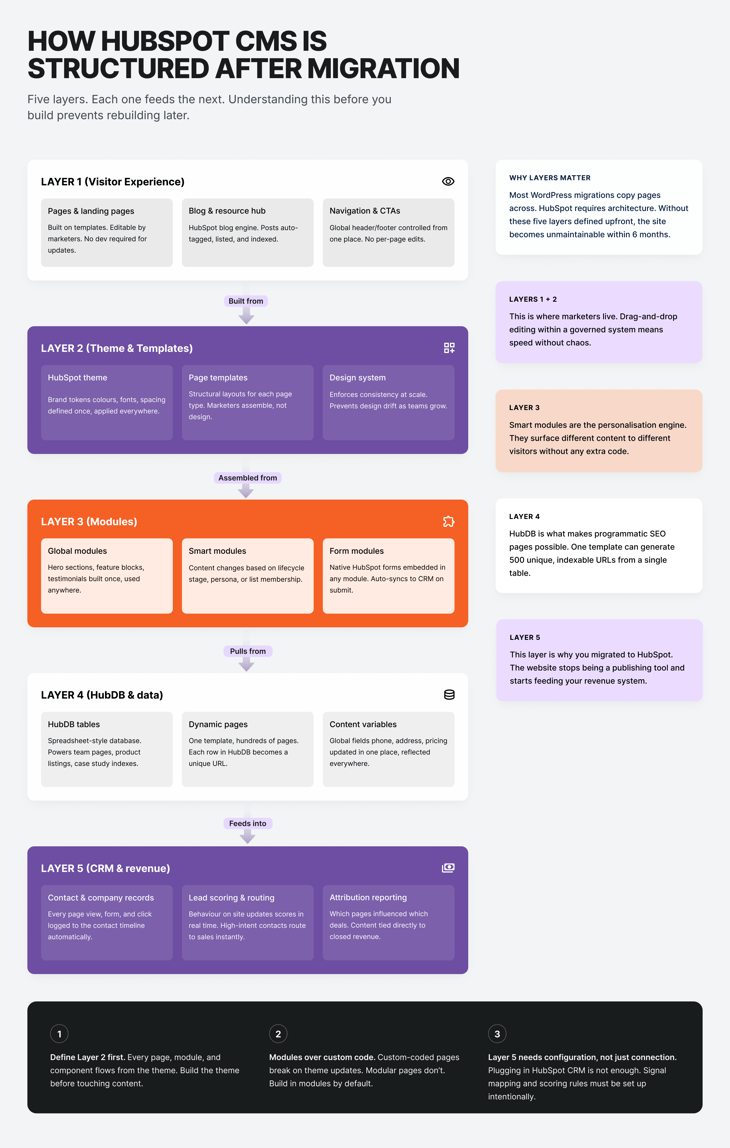
Before content goes in, the structure needs to exist. Create your template library (page templates, blog templates, landing page templates), build your design system, inside HubSpot's theme or custom modules, set up navigation, and configure your domain.
A well-architected HubSpot CMS setup uses HubDB for structured content, reusable modules for repeated components, and a governed template system that prevents design drift as your team grows.
STEP 3 Migrate Pages, Blog Posts, and Media
HubSpot's native WordPress importer handles the majority of blog post migration automatically. Go to Marketing > Website > Blog > Import and use the WordPress XML
export file.
For pages and landing pages, manual migration into HubSpot templates gives you better quality control. Images should be uploaded to HubSpot's file manager with references updated in content. Quality control on every page takes time, and it is worth it.
STEP 4 Recreate Forms and Connect to HubSpot CRM
Every WordPress form needs to be rebuilt in HubSpot's native form tool.
Map each form field to the correct HubSpot contact property.
Set up workflows triggered by each form submission. Configure thank-you pages and follow-up emails. Test every form end to end before go-live.
A form that submits but does not create a CRM contact is not a working form.
STEP 5 Configure 301 Redirects in HubSpot
Go to Marketing > Website > Domains & URLs > URL Redirects in HubSpot and upload your redirect map via CSV bulk import. Test every redirect after upload using Screaming Frog or httpstatus.io.
A redirect that chains through multiple hops loses link equity at every step. Aim for single-hop redirects wherever possible.
STEP 6 QA, Test, and Go Live
Before flipping DNS, run a full QA pass: every page at mobile and desktop, all forms end to end, all redirects firing correctly, HubSpot tracking code on every page, Google Analytics and ad pixels installed.
Then flip DNS. Monitor rankings and crawl errors in Google Search Console daily for the first two weeks post-launch.
After go-live, disable or delete your old WordPress site within 2 to 4 weeks. A live WordPress nstance with the same content as your new HubSpot site creates duplicate content issues.
Put it behind a password or add a robots.txt noindex directive if you need it for reference.
How to Protect Your SEO During a WordPress to HubSpot Migration
SEO preservation during a CMS migration comes down to one principle:
Google should experience as few surprises as possible. Every URL that changes, every title tag that disappears, every internal link that breaks is a signal.
Your job is tominimise those signals and communicate the changes clearly.
The 301 Redirect Strategy That Preserves Rankings
A 301 redirect tells Google that a page has permanently moved.
It passes approximately 90 to 99 percent of the original page's link equity to the destination URL.
A missing redirect tells Google the page is gone, and any rankings or links pointing to it are abandoned. There is no recovery from a missing redirect except time, and in competitive B2B markets, time costs pipeline.
Prioritise redirects based on traffic and backlink volume.
Use Google Search Console to identify your highest-traffic pages and
Ahrefs or Semrush to find pages with inbound backlinks.
These are your critical redirects. Everything else is important but not urgent.
Do not change your URL structure and your content at the same time.If you are migrating and redesigning simultaneously, prioritise URL preservation first.
Change the structure, let rankings stabilise, then make large content changes. Changing both at once makes it nearly impossible to diagnose what caused a ranking drop.
What to Do in Google Search Console After Migration
-
Within 24 hours of going live, submit your new sitemap to Google Search Console under Index > Sitemaps.
-
HubSpot automatically generates a sitemap at yourdomain.com/sitemap.xml.
-
Monitor the Coverage report and Page Indexing report daily for the first two weeks.
-
Any 404 errors that appear post-launch indicate a redirect that was missed.
-
Fix them immediately - a 404 that persists for more than two to three weeks starts losing its link equity permanently.
How Long Does a WordPress to HubSpot Migration Take?
Migration timeline depends on three variables: site size, content complexity, and whether you are doing it in-house or with a specialist.
The single biggest driver of timeline overrun is decisions, not
technical work - projects with a clear decision-maker on the client side consistently complete faster than those with committee approval loops.
|
SITE SIZE |
PAGES / POSTS |
WITH SPECIALIST |
IN-HOUSE |
|---|---|---|---|
|
Small |
Up to 50 pages |
2 to 3 weeks |
4 to 6 weeks |
|
Mid-size |
50 to 200 pages |
4 to 6 weeks |
8 to 12 weeks |
|
Large |
200 to 500 pages |
8 to 10 weeks |
4 to 6 months |
|
Enterprise |
500+ pages, multiple domains |
12 to 20 weeks |
Not recommended |
How Much Does a WordPress to HubSpot Migration Cost?
Cost varies significantly based on scope. What drives cost up: custom integrations, large content volume, multilingual sites, complex form logic, and enterprise CRM configuration.
What keeps cost down: a clean WordPress site, a completed content audit before the project starts, and a single decision-maker on the client side.
If you are evaluating a HubSpot CMS migration service, the right partner will give you a straight answer on scope and cost before any contract is signed.
|
SCENARIO |
WHAT IT INCLUDES |
TYPICAL RANGE |
|---|---|---|
|
DIY migration |
HubSpot Content Hub licence, your team's time, no design rebuild |
Content Hub Starter from $15/seat/month, Professional from $500/month |
|
Partial agency support |
Agency handles technical migration and redirects; your team handles content |
$8,000 to $20,000 |
|
Full-service migration |
Strategy, design system, content migration, CRM integration, SEO preservation, QA |
$25,000 to $80,000+ |
WordPress Plugin Replacement Reference
HubSpot CMS has no plugin ecosystem. Every function your WordPress plugins provide needs a HubSpot-native equivalent or a custom solution. Here are the most common replacements.
|
WORDPRESS PLUGIN |
FUNCTION |
HUBSPOT EQUIVALENT |
|---|---|---|
|
Yoast SEO |
On-page SEO recommendations |
HubSpot native SEO recommendations tool |
|
Gravity Forms / WPForms |
Contact and lead capture forms |
HubSpot Forms - native, auto-syncs to CRM |
|
WP Rocket / W3 Total Cache |
Page speed and caching |
HubSpot managed hosting with built-in CDN |
|
Wordfence / Sucuri |
Security and malware scanning |
HubSpot managed security - no plugin required |
|
LiveChat / Tidio |
Live chat and chatbot |
HubSpot Conversations inbox and chatflows |
|
CookieYes / Complianz |
GDPR cookie consent banner |
HubSpot cookie consent tool or custom module |
|
Redirection plugin |
301 redirect management |
HubSpot URL Redirects - bulk CSV upload supported |
|
TablePress |
Responsive tables in content |
Custom HubSpot module or HubDB-powered table |
How to Choose the Right HubSpot CMS Migration Agency
Most agencies quote before they look. A number, a timeline, a deck — before anyone has seen a single URL.
That is backwards.
The migrations that go smoothly are the ones where someone spends serious time understanding the existing setup before touching HubSpot: auditing the website, mapping content and URLs, reviewing integrations, and checking that the CRM and HubSpot architecture are ready.
The technical work is only part of the migration. Moving pages and configuring redirects is straightforward. What separates a clean migration from a painful one is everything that happens before the project starts.
When evaluating a HubSpot CMS migration agency, ask what their pre-migration process actually looks like. They should be able to explain how they audit your existing website, identify dependencies, plan the new CMS structure, map URLs, and validate the migration before launch.
If they cannot explain that process specifically, keep looking.
This is the approach we take at OneMetric. We’ve completed 50+ migrations by scoping the technical requirements, content, SEO, and integrations before development begins. We scope before we quote.
Your site is next.